Appearance
IntelliTrack Mobile Client v5.0.13 Updates
Released: April 19, 2024
IntelliTrack Mobile Client version 5.0.13 has been released to the Play Store. It has three major changes:
- Site Selection: A User may now select a default site for the Mobile session in the Mobile Client.
- Menus: The application areas are reached from the Home screen via expandable menu options.
- Asset Inventory Forms: The asset inventory forms have been renamed.
The changes are discussed in the sections that follow.
Site Selection
When the logged-in User has access to more than one site, the User is able to specify the Site or change the Site used during a session via the Select Site screen. This means that when you work at screens that require a Site, the default Site will automatically populate the Site field.
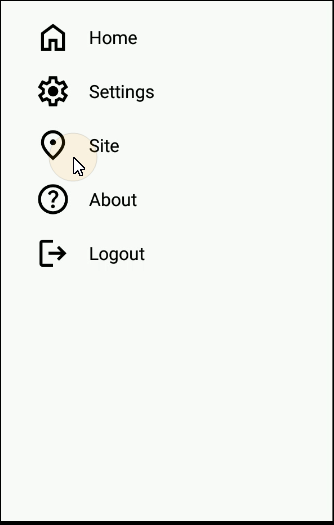
To accomplish this, a Site option is now part of the Flyout menu and a Site button is now anchored at the top of each screen.
To reach the Select Site screen, you may either click the Site option in the menu or click the Site button found at the top of the screen to set or reset your Default Site during a Mobile Client session.
User Site Criteria and Select Site Behavior
The Site behavior is determined by how many sites the logged-in User has access to and if the User has set a Default Site in the web application.
Scenario One
When the User only has access to one Site in the Tenant, the Select Site popup will not appear at Login and the Site option is not available from the Flyout menu. The Site that the User has access to will be used. The only change you will notice is that the Site selection process is seamless and transparent.
Scenario Two
When the User does not have a Default Site in the web application and has access to more than one Site in the Tenant, a Select Site popup appears at Login. The User may select a Site to use for this mobile session from this popup. Select a Site by tapping on it.
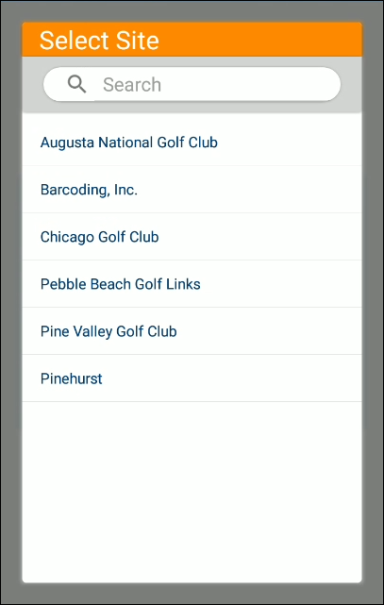
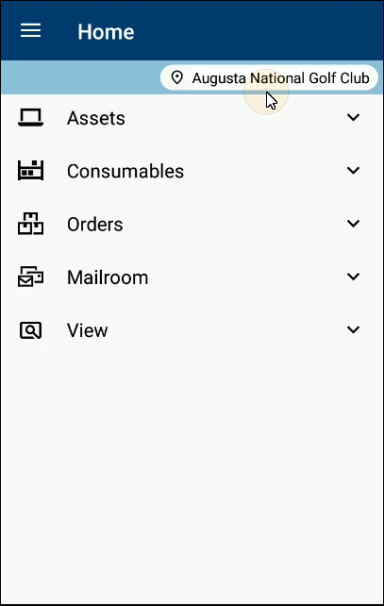
The popup will close and the site will be updated. The selected Site appears in the Site button, which is found along the top of the screen underneath the Main title bar.
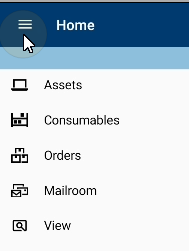
The User may invoke the Select Site screen at any time to change the Site via the Site button at the top of the screen or via the Flyout menu, which is reached by pressing the Burger icon in the top left corner of the screen.
Scenario Three
When the User sets the Default Site in the web application, it is carried over to the mobile application and the Select Site does not appear at Login. However, if the User has access to another site(s), the User may select another Site from the Select Site screen. The User may reach this screen via the Site button at the top of the screen or the Flyout menu.
Flyout Menu
Reach the Flyout menu by tapping on the Burger icon in the top left of the screen. From the menu, you may tap on the Site option in the Flyout menu and the Select Site screen will appear.
Menus
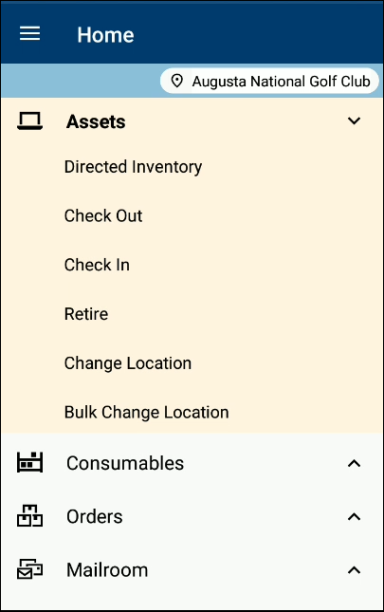
The menus now expand and collapse from the Home page. This means that you are able to easily reach each screen right from the Home page.
To reach the menu options, tap the caret to the right of an option to expand / collapse the menu.
For example, tap the caret to the right of the Assets option. The Asset menu expands and you may select the action you want to perform to go directly to it.
Assets Inventory Options
The Asset Inventory options are now found under Settings. Press Settings from the Flyout menu to reach the Settings screen. They have been renamed from Form 1, Form 2, Form 3, and Form 4 to:
- Directed Inventory: Use this option to perform a full inventory at a specific site-location.
- Undirected Inventory: Use this option to perform an inventory for a single asset at a time, to any site-location.
- New Asset Inventory: Use this option to perform an inventory for new incoming assets to a specified site-location.
- Simple Inventory: Use this inventory to validate assets in an existing site-location.
Note About the Move Screens
The Single Move and Mass Move have been renamed to: Change Location and Bulk Change Location. This is to standardize the terminology between the web application and the mobile client.