Appearance
IntelliTrack Q4 2023 Release Notes
Released: December 8, 2023
Quarterly release covering license management visibility and expiration notifications, asset auto-numbering, mail stop delivery for the Mailroom bundle, cycle counts for fixed assets, check in and check out policies for rotational assets, and consumable inventory enhancements.
General Platform
License Management
Users will have instant visibility to the IntelliTrack Bundles that the Tenant has access to from the Home page, as seen below.
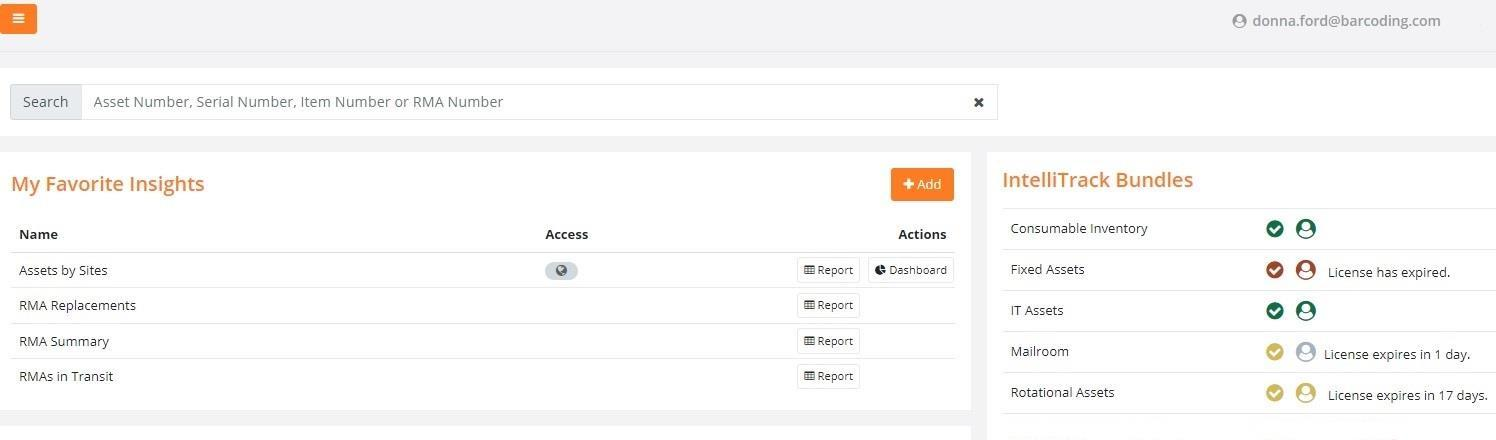
In addition, Icons and Colors have been implemented to distinguish License and User statuses as defined below.
 License has expired. User Not Licensed.
 Bundle Licensed. User Licensed.
 - Note: A Licensed Bundle will turn from Green to Yellow if the renewal date is within 30 days or less.
 License Expiring Soon. User Licensed.
 User Not Licensed.
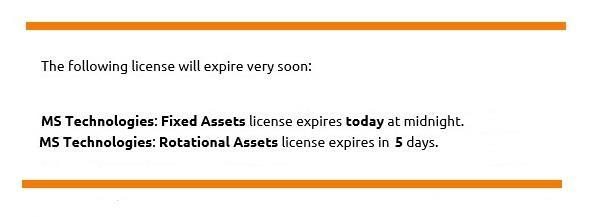
When a Bundle's License is about to expire, an Email Notification will be sent to the Users of IntelliTrack that have the Role of Administrator or Service Contract Administrator. There are two levels of frequency for these notifications:
- License Expiring in 7, 14, 21, 30, 60, or 90 Days.
- License Expiring Soon in 0 (Today), 1, 2, 3, 4, or 5 Days.
When an Email Notification is generated, it will contain Licenses that are expiring across all Tenants that the User has access to vs. an individual email for each License in the platform that is expiring. Here is an example of the Email Notification:
New Features
- Support for Asset Auto-Numbering has been implemented. This feature will automatically assign the Asset Number at the Add Asset page > Asset Number field and will be incremented based upon the Next Number setting. This setting is available on the Tenant Settings > Assets page.
- A User can now set a Site as their Default Site on their User Profile page. This page can be accessed by clicking on the Username (Email Address) in the upper right corner. Once a Default Site has been identified, those pages and forms that require Site input will automatically display the Default Site setting. The User can change the Default Site at any time, if desired.
- Users can now import specific as well as optional data when setting up Sites and Locations, to include setting up a Location as a Sub-Location.
Mobile Application
- A System Warning is now generated when the Wi-Fi Connection is dropped.
Fixed
- Add Filter: The "Contains" filter is now applied if the selected Field has a "Null" value.
- Label Printing: The value of "Null" is no longer displayed on the printed labels for Items that do not have a description.
Mailroom Bundle
New Features
- A Location can now be set as a Mail Stop.
- When importing Assignees, the User can import Site/Building and Location/Mail Stop.
- Email Notifications are automatically generated when the following Events occur in both the Web Portal and the Mobile Application:
- A package is received.
- A package is delivered to the Recipient.
- A package is delivered to a Mail Stop.
- A new Tenant Setting is now available. When enabled, it allows for the delivery of packages to a Mail Stop.
Mobile Application
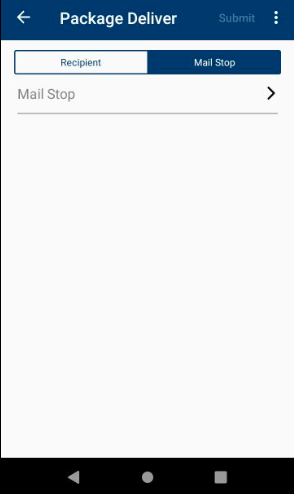
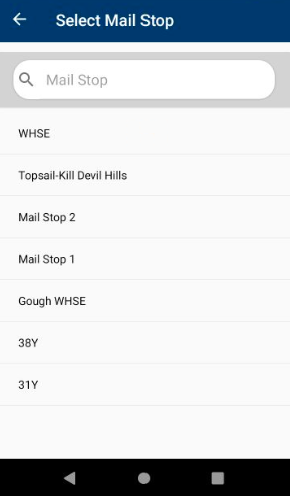
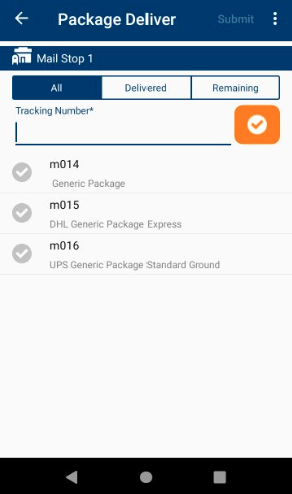
- The User can now deliver packages to a Mail Stop. This allows for the delivery of packages to multiple recipients that are designated for that Mail Stop. Recipients are then required to go to the Mail Stop to retrieve their package(s).
Fixed
Mobile Application
- On a Package Delivery, the checkbox now turns green after scanning the Tracking #, which indicates to the User that the scan was successful.
IT Assets Bundle
New Features
- The User can now perform a Quick Search by RMA Number from the Home page.
- RMA Summary Report: Two additional columns have been added - Days In Transit and Days In Repair. These can be incorporated via the Manage Columns and Add Filter options.
- A Comment can now be entered when Retiring an Asset.
- Note: This feature also applies to the Fixed Assets and Rotational Assets bundles.
- RMAs can no longer be created for Items that the Tenant deems "Unsupported" for repair.
- When a User performs a Ship Replacement or a Ship to Site for an Asset that is Checked Out, the Asset is Auto Checked In so that the shipment can proceed.
Fixed
- The Item Number field is now properly displayed in the RMA Cancellation Email Notification.
- The End of Support Date is now being updated for Items managed by Barcoding.
- An Asset that contains a lower-case letter in the Item Number can be successfully imported.
- User Information is now being captured for a Transaction on the Asset History page.
- The Carrier Tracking # is now being captured on a Ship to Site transaction.
- The Shipments to Customer Report no longer contains HTML data.
- The RMA Replacement Report now properly applies the Date Filter.
- The In Transit Report is successfully loading.
Fixed Asset Bundle
New Features
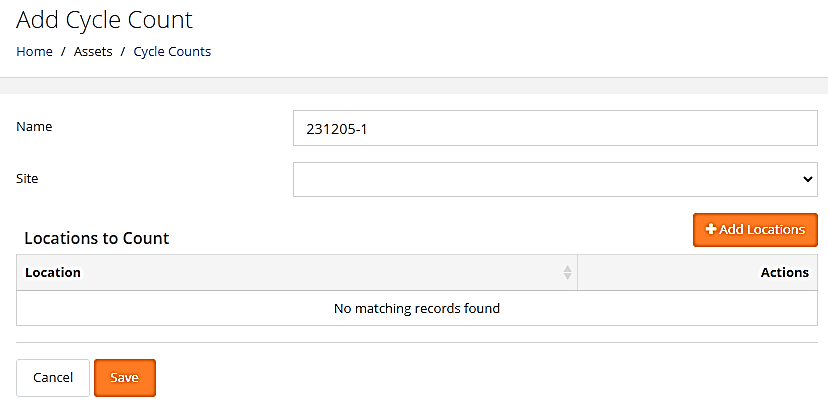
The User can now Add a Cycle Count.
The User can now view a List of Cycle Counts and Close a Cycle Count.

The User can now view the Details of a Cycle Count.
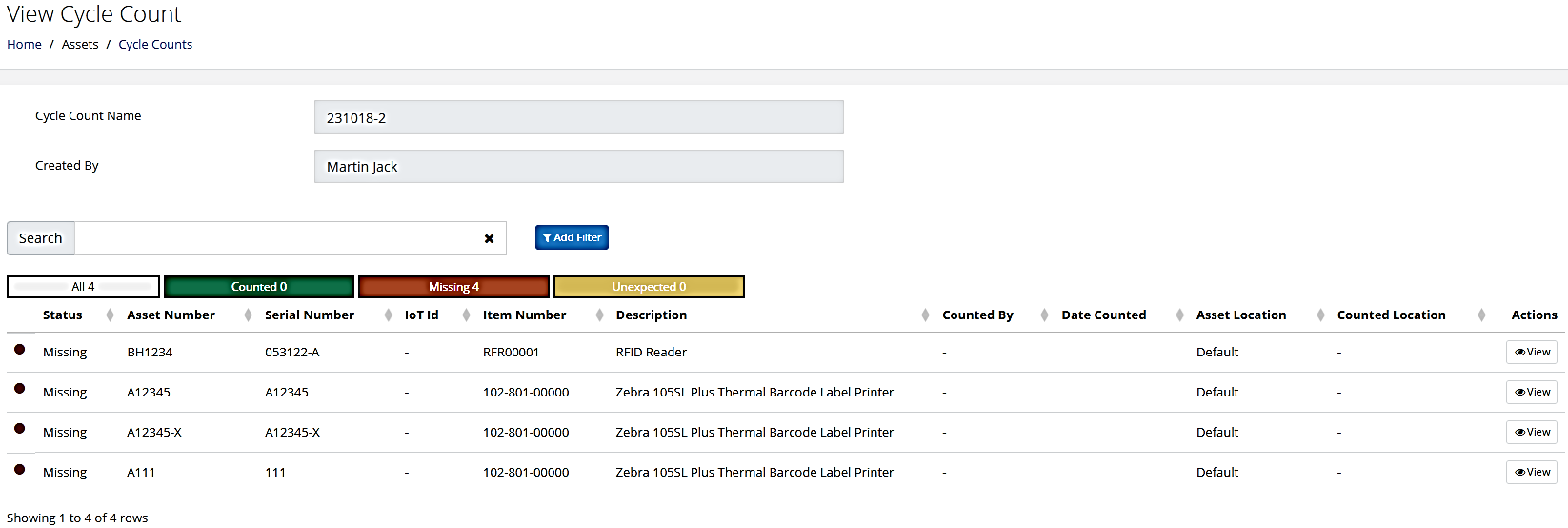
The Last Cycle Count Date can be incorporated into the Assets page via the Manage Columns and Add Filter options.
Mobile Application
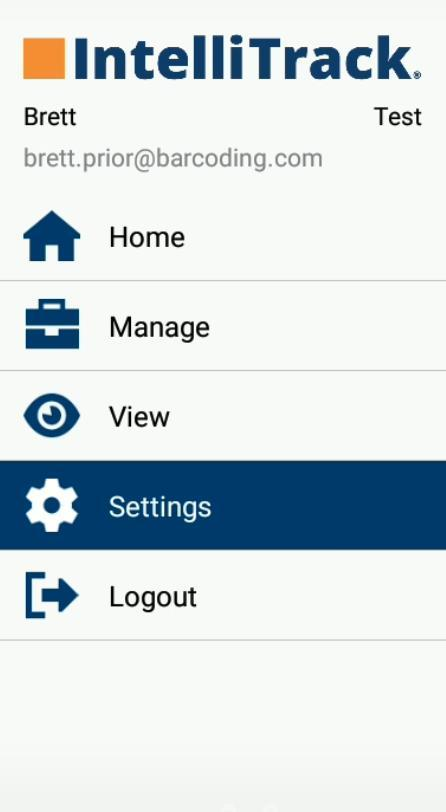
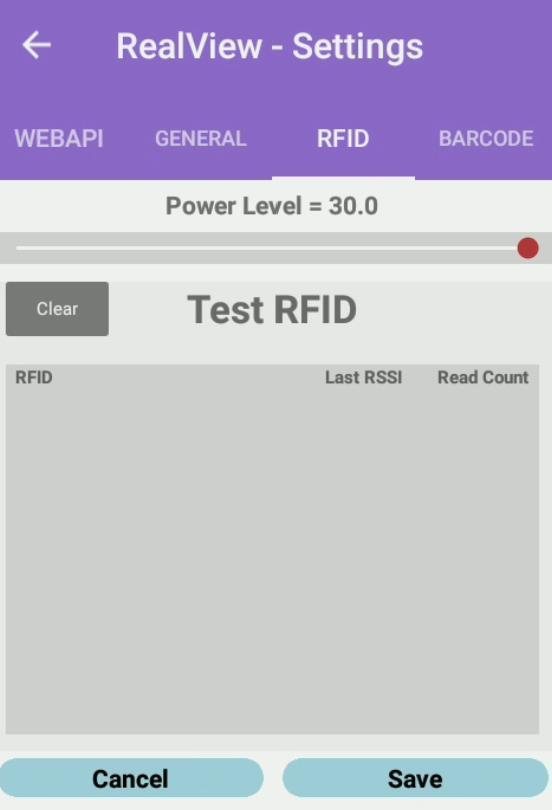
- The User can now perform an RFID Cycle Count.
- The User can now change the RFID power level when performing a Cycle Count.
- The User can perform test RFID reads and set the default RFID power level for all screens except for Locate and Cycle Count.
Rotational Assets Bundle
New Features
- An Assignee can now be associated with a Site/Location.
- The Checked Out Assets Report now contains the following fields in the Manage Columns and Add Filter options:
- Comments
- Condition
- Order Number
- Purchase Cost
- Users can now Subscribe to the Checked Out Assets Report.
- The Search Assignee field will now look up the Assignee when a partial Assignee Name or Assignee ID is entered in this field. This allows the User to quickly search for the Assignee without having to know the full Assignee ID or Name.
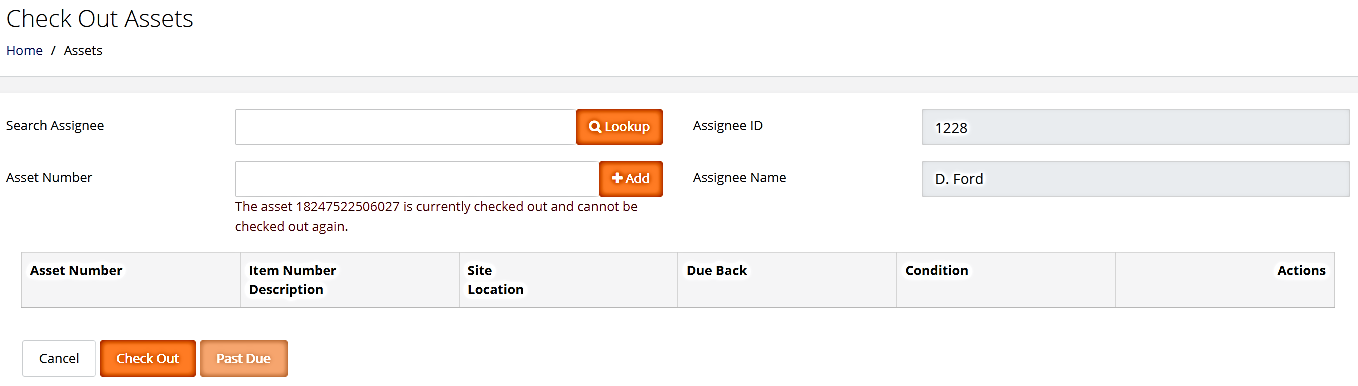
- Check In and Check Out policies have been implemented as follows:
Allow an Asset that is currently checked in or checked out to be checked in or out again without any restrictions.
Allow an Asset that is currently checked in or checked out to be checked in or out again but issue an alert that requires confirmation before checking in or checking out the Asset.
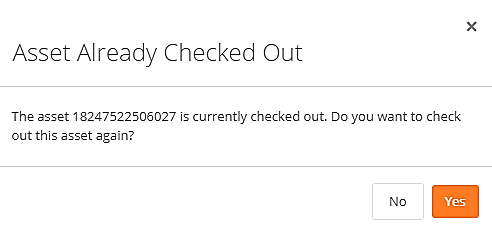
Prohibit an Asset that is currently checked in or checked out from being checked in or checked out again. An alert will be displayed to advise the User of the restriction.
Consumable Inventory Bundle
New Features
- An Email Notification is now generated immediately after a performed transaction results in the Item's On-Hand Quantity falling below the Reorder Threshold.
- The User can now Import Inventory.
- A Note can be added when performing an Inventory Adjustment.
- The User can now perform a Bulk Change for updating Quantity with the Inventory Quantity for all selected Inventory Records.
- The User now has the option to manually update the Quantity On-Hand based on the Inventoried Quantity.
- The Inventory Quantity field is now displayed in the Adjust form (Consumable Inventory page > Item in Inventory > Adjust button > Adjust form) when the Auto-Update Inventory Quantity setting is Disabled for the Site, which means that the Inventoried Count will be uploaded separately into the Inventory Quantity field.
- Consumable Orders Report: User Defined Fields as well as a Notes field for the Line Item transaction have been incorporated into the Manage Columns and Add Filter options. The report now also contains the Total Extended Cost value.
- An Issues with Returns Report is now available, which contains the Unit Cost and Extended Cost values.
- Packing List Report: A Description field and a Notes field for the Line Item transaction are now available in the Manage Columns and Add Filter options.
- The Manage Columns feature has been added to the Orders pages to allow for creating a Customized Page View, which can include Order User Defined Fields.