Appearance
Updating IntelliTrack Mobile for Legacy Users
Move from the legacy IntelliTrack Stratus mobile app to the new IntelliTrack Mobile client: uninstall the old app, install the new one from the Google Play Store, and sign in with your IntelliTrack web credentials.
Important
These instructions pertain to users who have migrated from the legacy IntelliTrack Stratus product. The IntelliTrack Mobile Legacy client, v3.2.7 is not compatible with the new IntelliTrack platform. Once your data has been migrated to the new IntelliTrack platform, you will need to begin using the new IntelliTrack Mobile client.
IntelliTrack Mobile Client
The new IntelliTrack platform has a mobile client that is available for download on the Google Play Store.
| IntelliTrack Mobile Client Specifications | |
|---|---|
| Operating System | Android 8.0 and higher |
| Integrated Scanning | Zebra, Honeywell, DataLogic Devices |
Update Instructions
The steps that follow provide detailed instructions on how to get up and running with the new IntelliTrack Mobile Client.
Uninstall the "old" IntelliTrack Legacy – Stratus mobile app on the device.
From the device's Home screen, locate the IntelliTrack Legacy icon. (A White and Blue circle that is labeled IntelliTrack.)
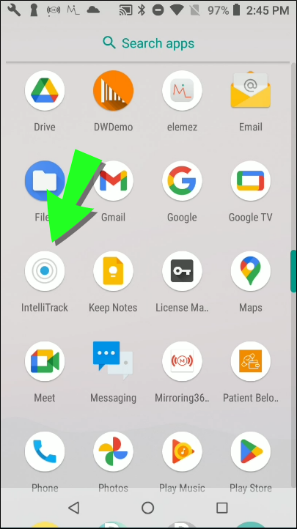
Press on the IntelliTrack Legacy icon until an App Info option appears:
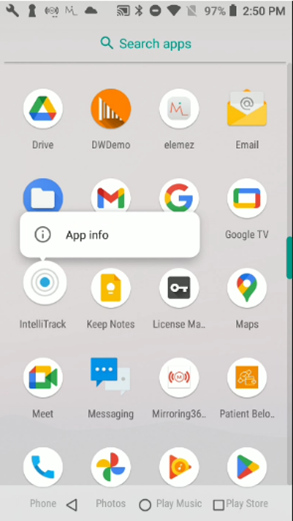
Press on the App Info option to open the IntelliTrack App Info screen and select the Uninstall option to uninstall the legacy IntelliTrack on the device:
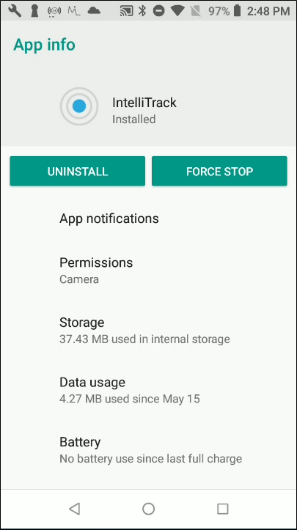
After the legacy IntelliTrack v3.2.7 is uninstalled from the device, you need to download the new IntelliTrack Mobile application from the Google Play Store.
Locate the Play Store icon on the Device's Home screen.
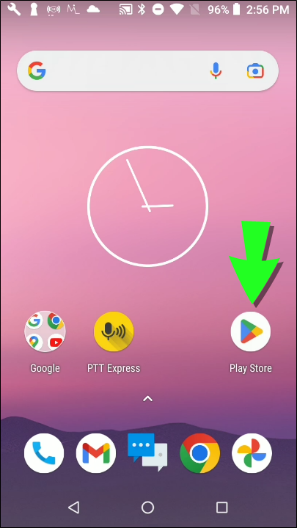
Tap on the Play Store icon to open the Play Store on the device.
In the Play Store\Search Apps field, enter IntelliTrack via the onscreen keypad and press the Search icon in the bottom right of the screen.
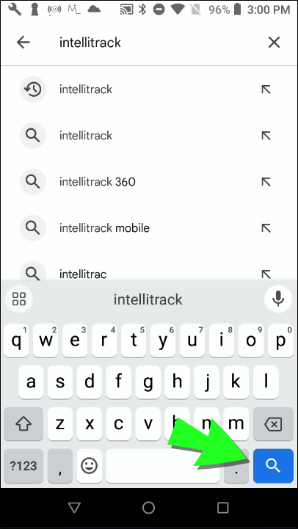
IntelliTrack Mobile App Options appear on the screen.
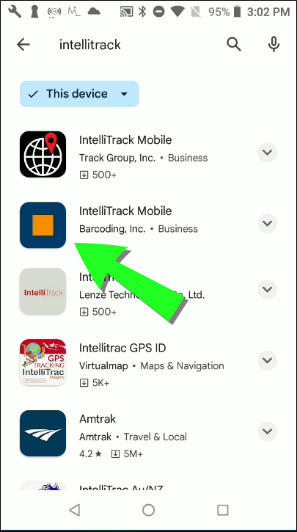
Be sure to select the IntelliTrack Mobile Barcoding, Inc. option. It is a blue and orange square.

Once you select this option, it will appear on the screen with the Install option.
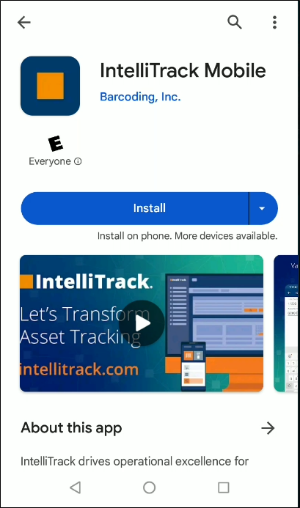
Select the Install option to install the IntelliTrack Mobile Client. A status indicator shows installation progress.
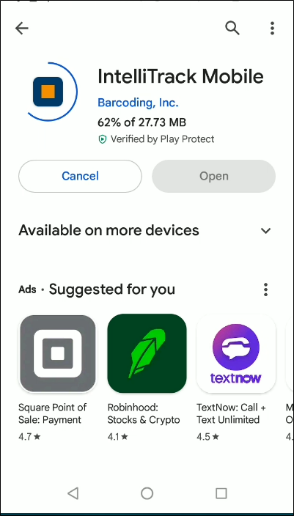
When the Installation is completed, an option appears to Open the IntelliTrack Mobile Client on the device.
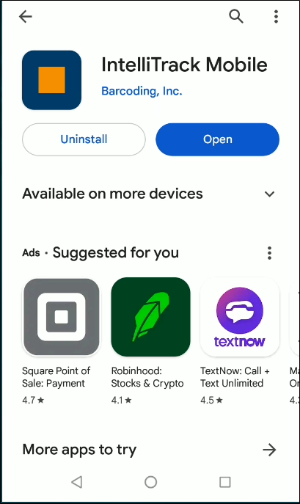
Tap the Open option.
The IntelliTrack Login Screen appears. (This is the Login screen for the new IntelliTrack platform.)
Tap the Login button
Another Login-IntelliTrack screen appears.
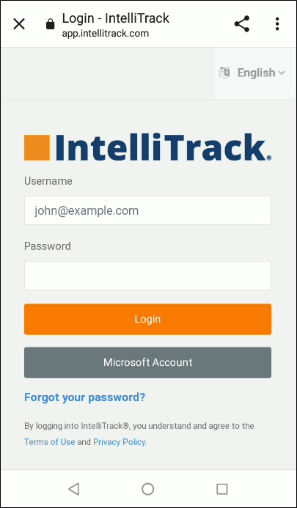
In the Username field enter your IntelliTrack Username (the one that you use for the web application). In the Password field, enter your IntelliTrack password (the one that you use for the web application).
Press Login.
You will be directed to the IntelliTrack Mobile Home screen.
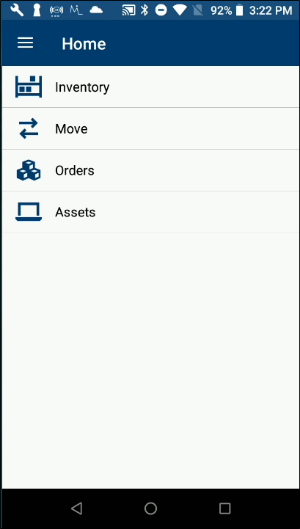
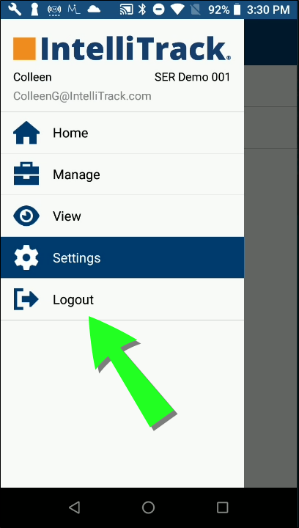
Press the Burger menu icon to view the slide out menu. Your Username-Tenant appears underneath the IntelliTrack logo. This shows you that you are logged into the new IntelliTrack mobile client in your IntelliTrack Tenant.
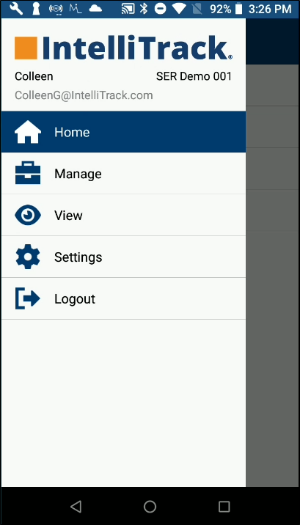
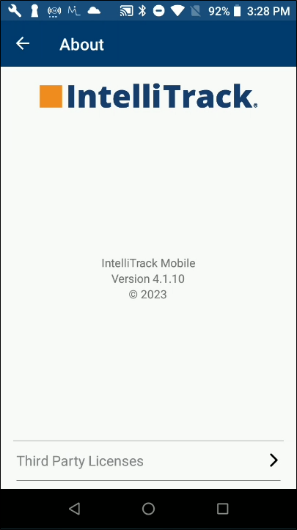
Settings > About will direct you to the About page, you should have installed IntelliTrack Mobile.
To Logout of IntelliTrack Mobile, select Logout from the slide-out menu:
You are returned to the Login screen.
Press the Device Home button to return to the Home screen.
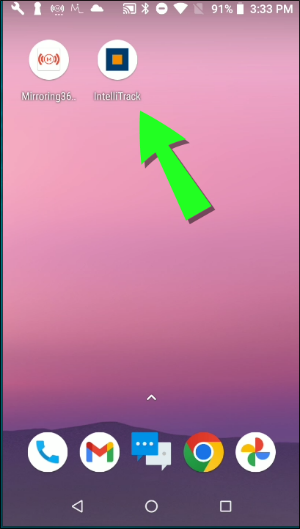
Now that the new IntelliTrack Mobile is installed, when you are at the device's Home screen, the IntelliTrack icon will be the new IntelliTrack Mobile icon. Tap on it to open IntelliTrack Mobile.
Related
- IntelliTrack Mobile release notes
- Platform and Compatibility FAQs
- IntelliTrack Getting Started Guide — setting up the users who sign in to the mobile client