Appearance
Reactivating an IntelliTrack Account
Reactivate an IntelliTrack account that was deactivated for inactivity: request a reactivation email from the Log In screen, then set a new password.
For Security purposes, an IntelliTrack® User's Account will be deactivated if they have not logged into the platform within the "User Inactivity Period" established for their Tenant.
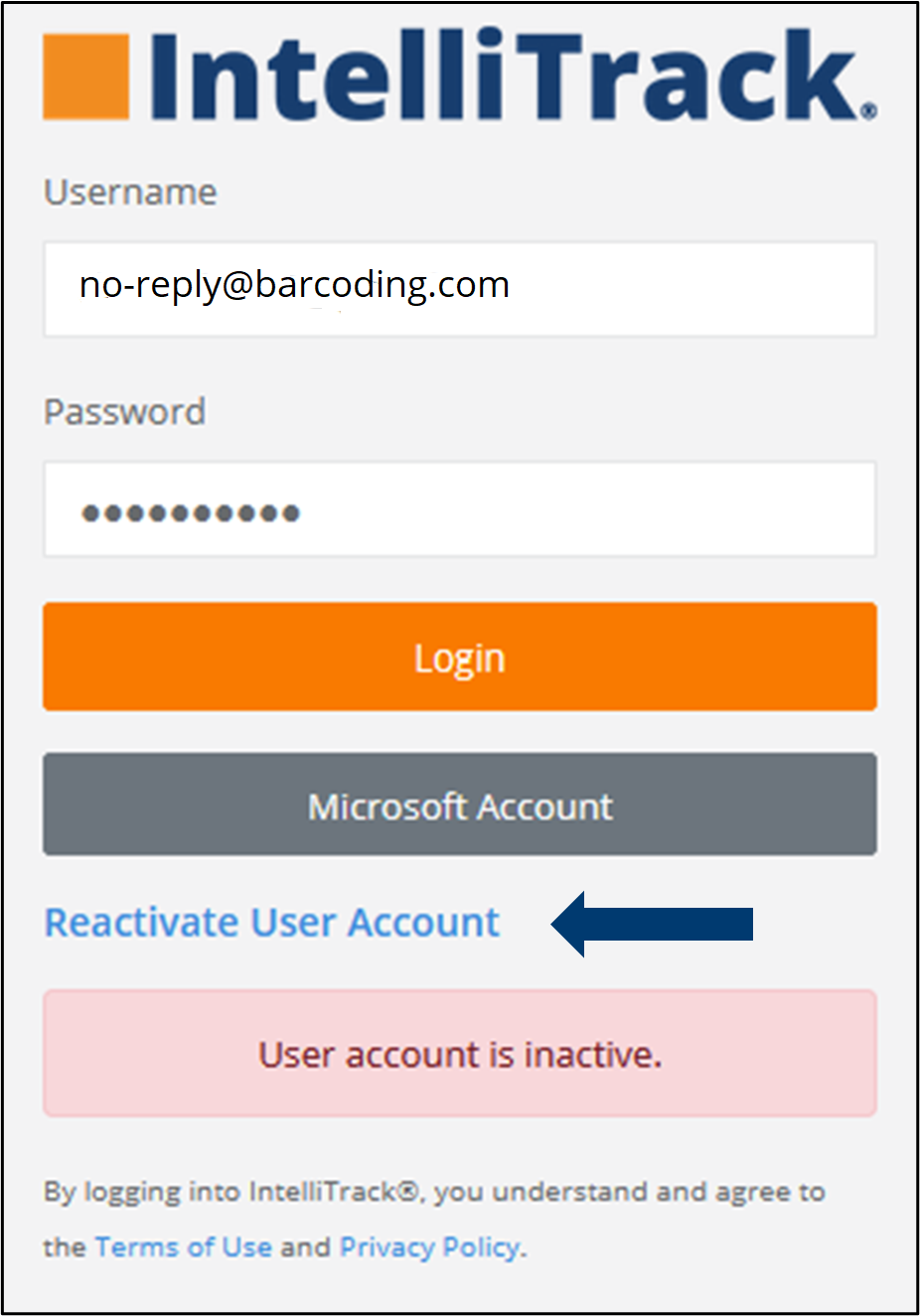
Once the account has been deactivated, a "User account is inactive." notification will be displayed at the Log In screen when a log in is attempted, as seen below.
To reactivate the account, the User will click on the Reactivate User Account link.
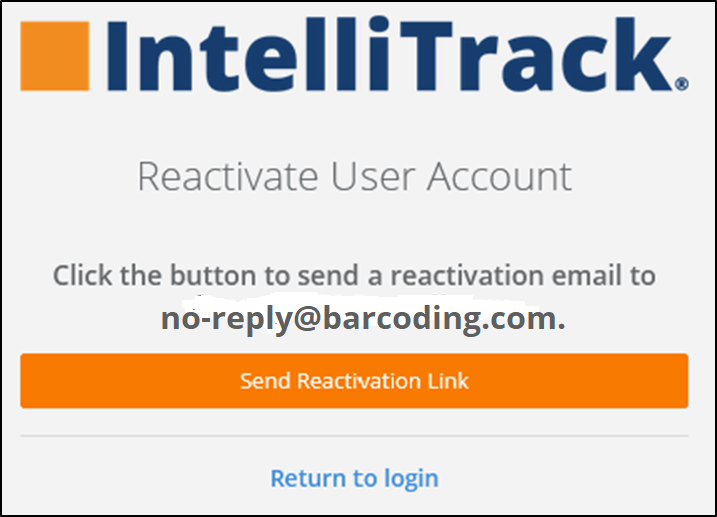
This will launch the Reactivate User Account screen, where the User will click the "Send Reactivation Link" button.
Note
They may also choose to return to the Log In screen.
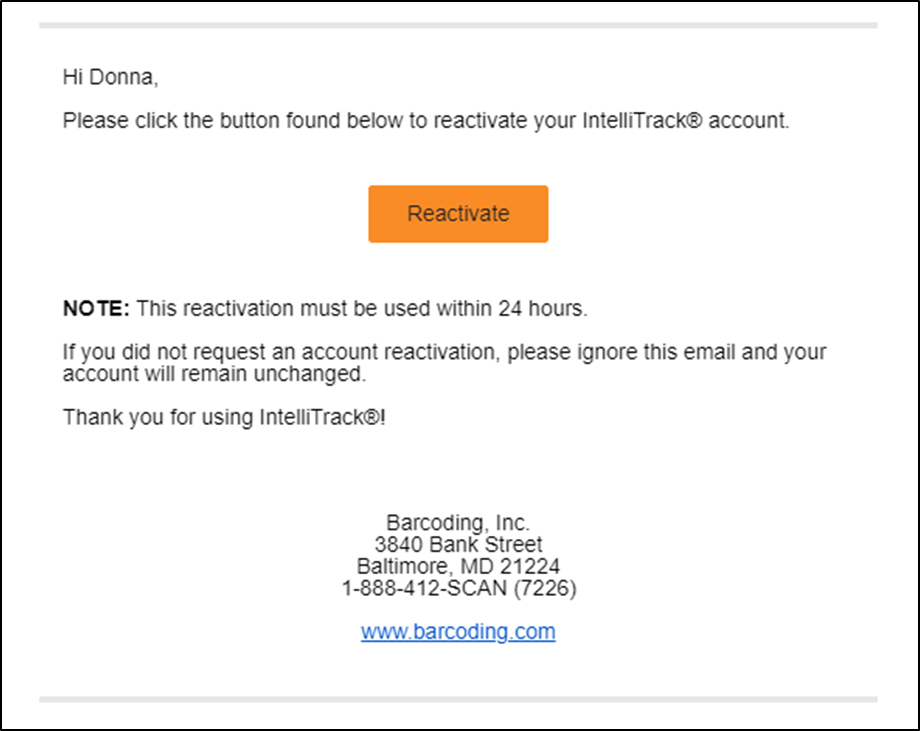
Upon clicking the Reactivation Link, the User will receive an email notification that contains a Reactivate button, as seen below. This reactivation must be used within 24 hours.
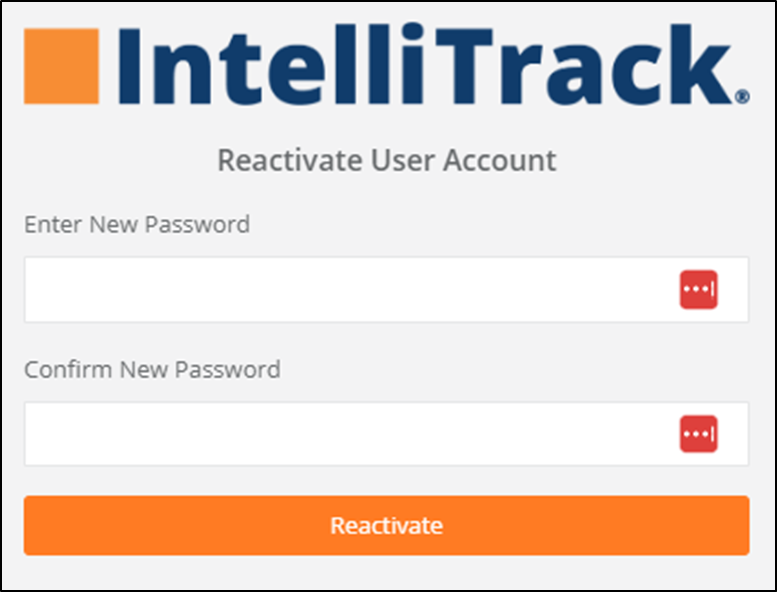
After clicking the Reactivate button, the screen seen below will be displayed. To complete the reactivation process, the User will enter and confirm their New Password and click the Reactivate button.
The Log In screen will then be displayed, allowing the User to access their IntelliTrack® account.
Related
- IntelliTrack Getting Started Guide — the default inactivity period and how administrators change it
- General Security FAQs — password requirements for the new password
- Platform and Compatibility FAQs